How to log into webmail and access email from anywhere
Learn how to find your webmail login, access business email from anywhere, and keep your inbox secure with simple tips for Rebel users.

Your inbox should not play hide-and-seek the moment you leave your desk.
Whether you are meeting a client, working from a coffee shop, traveling for a conference, or checking in from your couch in socks that absolutely count as office wear, webmail gives you a simple way to access your business email from almost anywhere. A webmail login lets you open your inbox in a browser without installing an app, configuring a device, or asking your future self why email settings have so many tiny boxes. For small business owners, freelancers, and growing teams, that kind of flexibility can make your day feel a lot less wobbly.
The tricky part is that webmail can feel a little mysterious if no one has ever shown you where to find it. You may know your email address, your domain name, and your password, but still not know which login page belongs to your inbox. This guide walks through what webmail is, how to find your webmail login, how Rebel users can access their email, and how to keep everything secure when checking email from different devices. By the end, you will know exactly where to go, what to enter, and what to do when something does not look quite right.
Table of contents
- What is webmail?
- Why webmail matters for small business owners
- How to find your webmail login URL
- How Rebel users can access webmail
- How to log into webmail correctly
- How to make webmail easier to access
- How to keep your webmail login secure
- Common webmail login problems and fixes
- Webmail vs email apps
- Final webmail checklist
What is webmail?
Webmail is your email inbox, opened through a web browser instead of an email app. You visit a login page, enter your email address and password, and your inbox loads right there in the browser. There is no software to install, no server settings to type in, and no need to set up Outlook, Apple Mail, or another email client first. It is email with fewer moving parts, which is sometimes exactly what a busy business owner needs.
You are already familiar with the idea if you have ever signed into Gmail, Outlook.com, or another browser-based inbox. The difference is that custom domain email, like hello@yourbusiness.ca, often has its own webmail login page. That login page depends on your email provider, hosting setup, or business email service. Once you know where that page lives, webmail becomes one of the easiest ways to check your professional email from any connected device.
For small businesses, webmail is especially useful because it keeps your professional communication accessible without tying it to one laptop or phone. You can reply to a customer from a borrowed computer, check an invoice while traveling, or confirm an appointment from a tablet. That does not mean you should log in from just anywhere without care, because security still matters. It does mean you have a reliable backup when your usual email app is not available.
Why webmail matters for small business owners
Email is often where the real work happens. It is where quotes are approved, invoices are sent, customers ask questions, suppliers confirm details, and your future self leaves important breadcrumbs. When your email is hard to access, small delays can turn into missed opportunities or unnecessary stress. Webmail helps by giving you a browser-based door into your inbox whenever your regular setup is out of reach.
This is especially helpful for solopreneurs and small teams that do not have an IT department waiting in the wings. You may be the person building the website, replying to customers, choosing the domain name, and remembering where the coffee filters are. A simple webmail login keeps email access manageable without forcing you to become a mail server expert. That is the kind of practical simplicity we like to see.
Webmail also gives you a helpful safety net when an email app stops syncing. If your phone is not showing new messages, webmail can help you check whether the issue is with the mailbox or just the app. If messages appear in webmail, your account is likely receiving mail properly, and the problem may be with device settings or syncing. That quick check can save you from chasing the wrong problem.
How to find your webmail login URL
Your webmail login URL depends on where your email is hosted. Some businesses use Google Workspace, some use Microsoft 365, some use hosting-based email, and others use a dedicated professional email service. The important thing is to start with your provider, because the right login page is connected to the service managing your mailbox. Once you know the provider, finding the login becomes much easier.
Here are the most common places to check first. Each option below is meant to help you narrow down the right door to your inbox. Take your time and match the option to the kind of email service you use. A few minutes here can save a lot of “why is this password not working?” energy later.
- Google Workspace: If your business email is powered by Google Workspace, you usually sign in through Gmail using your full business email address. This means you are not using a separate hosting webmail page. You use the same familiar Gmail interface, but with your custom domain email. This setup is common for businesses that want Gmail, Google Drive, Calendar, and collaboration tools in one place.
- Microsoft 365: If your business email is powered by Microsoft 365, you usually access it through Outlook on the web. You sign in with your full Microsoft 365 email address and password. This is common for businesses that use Outlook, Teams, OneDrive, Word, Excel, and other Microsoft tools. It gives you browser-based access while keeping your mailbox connected to the Microsoft ecosystem.
- Hosting-based email: If your email comes with a hosting plan, your webmail login is often connected to your domain name or hosting control panel. Common examples include formats like
webmail.yourdomain.com, where you replaceyourdomain.comwith your actual domain. Plesk’s own support documentation giveswebmail.example.comas the direct webmail format for a domain, while cPanel describes webmail as browser or mobile access to your email account. - Dedicated professional email provider: Some businesses use a standalone email service that is separate from their website hosting. In that case, your provider will usually have its own branded login page. Your welcome email, account dashboard, or provider help centre should list the correct login page. This is one reason it is helpful to save your original setup emails in a safe place, ideally somewhere other than the inbox you are trying to access.
How Rebel users can access webmail
If your email is with Rebel, your webmail login depends on the type of email or hosting package you have. Rebel’s Help Centre explains that Plesk Hosting packages use a domain-based format like webmail.domain.tld, while Classic Hosting and Professional Email packages use webmail.rebel.com. Rebel also has separate webmail guidance for Cloud Email packages, because login details can vary depending on the specific plan.
That means the best first step is to identify which Rebel email service you are using. If your email is connected to a Plesk hosting package, try the webmail version of your own domain. If your domain is example.ca, your webmail address would follow the format webmail.example.ca. If you are using Rebel Classic Hosting or Professional Email, Rebel’s Help Centre points users to webmail.rebel.com.
Rebel’s current email offerings include options for professional email, Plesk email with hosting, and Google Workspace, so not every Rebel customer will use the exact same login path. Rebel’s email page describes custom domain email, email through web hosting, and Google Workspace as available options for different business needs. That variety is helpful, but it also means your login page should match your package.
When in doubt, your Rebel account dashboard and the Rebel Help Centre are the safest places to confirm your exact webmail login. It is better to check the official path than to guess through random login pages. This also helps protect you from lookalike sites that may try to collect your password. A professional inbox deserves a professional amount of caution, which is to say: just enough to keep the gremlins out.
How to log into webmail correctly
Once you have found the right webmail login page, the actual sign-in process is usually simple. The most common mistake is entering only the first part of your email address as the username. For custom domain email, your username is usually your full email address, such as hello@yourbusiness.ca. That full address tells the mail system exactly which mailbox you want to open.
Your password should be the password for that specific email account. It may not be the same as your domain account, hosting account, or website admin password. This distinction matters because many small business owners manage several related services from one provider. Your domain, hosting, website, and email may all be connected, but they are not always unlocked by the same key.
If you have forgotten your email password, use the password reset method recommended by your provider. With hosting-based email, you may need to reset the mailbox password from your hosting control panel rather than the webmail screen itself. This keeps the reset tied to the mailbox instead of accidentally changing a broader account password. For Rebel users, the Help Centre or account dashboard is the right place to start if you need package-specific steps.
Before trying several password guesses, pause and check the basics. Make sure caps lock is not on, your password manager is not filling an old password, and you are on the correct login page. Repeated failed login attempts can sometimes trigger temporary security blocks. A calm thirty-second check can be surprisingly powerful, and it is much less dramatic than locking yourself out during a busy workday.
How to make webmail easier to access
Webmail is most useful when you can reach it quickly. You do not want to search your memory, your inbox, or that one notebook with the suspicious coffee stain every time you need to check email from a browser. A little setup now makes future access much smoother. Think of it as leaving a clearly marked trail for your future busy self.
Here are a few practical ways to make your webmail login easier to reach without making it less secure. These steps are simple, but they can make a big difference when you are away from your main device. The goal is convenience with boundaries. Your inbox should be accessible to you, not to everyone who borrows a keyboard.
- Bookmark your webmail login page: Save the correct webmail page in your browser bookmarks on trusted devices. Use a clear bookmark name like “Business webmail” or “Rebel webmail” so you can find it quickly. This is especially useful if your login uses a domain-based format that is easy to mistype. A bookmark also reduces the risk of landing on the wrong page through a rushed search.
- Save your password in a trusted password manager: A password manager can store your email password securely and autofill it on the correct site. This is safer than writing the password in a notes app or reusing a simple password across multiple services. Only use password saving on devices you control and protect with a strong login. On shared or public computers, do not save your password, even if the browser asks nicely.
- Add webmail to your phone’s home screen: Most mobile browsers let you save a webpage shortcut to your home screen. This can make webmail feel almost like an app without installing anything new. It is a useful option if you only need occasional mobile access or want a backup to your main email app. Just make sure your phone itself is protected with a passcode, fingerprint, or face unlock.
- Keep your login details documented safely: Store the webmail URL, email address, provider name, and support link in a secure business password vault or internal documentation file. This is especially helpful if more than one person on your team may need access. Do not store the password in plain text in a shared document. Clear documentation helps your team stay organized without turning security into a group project gone rogue.
How to keep your webmail login secure
Accessing email from anywhere is convenient, but convenience should bring a buddy named security. Your inbox may contain invoices, customer messages, password reset emails, contracts, and private business details. That makes email one of the most important accounts to protect. A few steady habits can greatly reduce your risk without making your workflow feel heavy.
Security is not about being paranoid. It is about being prepared in small, repeatable ways. You do not need to become a cybersecurity expert to make better choices with webmail. You just need to know which habits matter most and use them consistently.
- Use secure webmail pages only: Your webmail page should load securely in the browser, usually with a padlock icon in the address bar. If your browser shows a certificate warning, do not ignore it just to get into your inbox faster. Certificate warnings can mean the site’s security certificate is expired, misconfigured, or not matching the domain. Contact your provider or check official support instructions before entering your password.
- Avoid logging in on public computers: Public or shared computers can store browsing history, cached files, or saved sessions. Even if you log out, you cannot always know what software is installed on the machine. Use your own device whenever possible. If you must use a shared computer, log out fully, close the browser, and avoid saving any login details.
- Be careful on public Wi-Fi: Public Wi-Fi in hotels, airports, libraries, and cafés can be convenient, but it is not always the best place to handle sensitive business tasks. A trusted VPN can add protection when you need to check email on public networks. Your mobile data connection may also be a better choice for sensitive logins. The point is not to panic, but to avoid sending important business access through a network you do not trust.
- Turn on two-factor authentication when available: Two-factor authentication, often called 2FA, adds a second step after your password. This usually means a code, prompt, or authentication app confirmation. If someone gets your password, 2FA can make it much harder for them to access your inbox. Check your email provider’s security settings to see what 2FA options are available for your account.
- Use strong, unique passwords: Your email password should not be reused across other sites. If another service has a data breach and you reused the same password, your inbox could be at risk. A password manager can create and store strong passwords so you do not have to memorize a tiny novel of symbols. This is one of the easiest upgrades you can make to your business security.
Common webmail login problems and fixes
Even when you have the right webmail page, things can still get a bit fussy. Maybe the password does not work, the page looks broken, or your messages are not showing up where you expect them. Most webmail problems have a small set of common causes. Start with the simple checks before assuming something major is wrong.
The fixes below are designed to help you troubleshoot without spiraling into a tab-filled detective board. Work through them one at a time and note what changes. If you are a Rebel customer and the issue continues, Rebel’s Help Centre has email troubleshooting guidance, including checking passwords, mail records, and whether your email is hosted with Rebel or a third party.
- “Invalid username or password” message: First, confirm that you are using your full email address as the username. Then check that you are on the correct login page for your email package. Make sure your password manager is not filling in an old password. If needed, reset the mailbox password through your provider’s recommended process.
- The page loads, but it looks broken: Try opening the page in a different browser or clearing your browser cache. Some webmail interfaces behave better in one browser than another. You can also try a private browsing window to rule out old cookies or extensions. If the issue happens across browsers and devices, the provider may need to investigate.
- You can log in, but emails are missing: Check other folders such as spam, junk, archive, or deleted items. Some webmail interfaces open to a different folder or view than your email app. Also check whether your mailbox storage is full, because a full mailbox can prevent new messages from arriving. If you use an email app as well, confirm that it is not moving or deleting messages unexpectedly.
- Your session keeps timing out: Webmail sessions often expire automatically to protect your account. This is helpful on shared devices but can feel annoying on your own computer. Look for a “stay signed in” option only on devices you trust. Do not use persistent login options on public or shared machines.
- You see a certificate or security warning: Stop before entering your password. A certificate warning can signal a problem with the webmail domain or SSL setup. Check your provider’s official login instructions and contact support if the warning continues. It is much better to ask than to hand your password to a page your browser does not trust.
Webmail vs email apps
Webmail and email apps both help you access your inbox, but they shine in different situations. Webmail is excellent for quick access from a browser, especially when you are away from your usual devices. Email apps are often better for daily use because they can feel faster, support notifications, and make it easier to manage multiple accounts. Most business owners benefit from using both.
Think of your email app as your everyday workspace. It is where you may have folders, signatures, rules, saved contacts, and notifications configured exactly how you like them. Think of webmail as your reliable spare key. You may not use it every hour, but you will be very glad it exists when your app stops syncing or your laptop is not nearby.
If your email account uses IMAP, changes you make in webmail usually sync with your email app. That means if you read, delete, or move a message in webmail, the change should appear in Outlook, Apple Mail, Thunderbird, or your mobile mail app too. This keeps your inbox consistent across devices. It also makes webmail a practical backup rather than a separate inbox you need to manage manually.
For Rebel users, the right setup depends on your email package and how you prefer to work. Some people want simple browser access. Others want a full email app setup across laptop and phone. Either way, having your webmail login bookmarked gives you a dependable fallback when the day gets weird, which, as every small business owner knows, is not exactly rare.
Final webmail checklist
Before you consider your webmail setup complete, it is worth running through a quick checklist. This helps make sure you can access your inbox when you need it and that your login habits are safe. The goal is not perfection. The goal is a clean, practical setup that supports your work without adding extra clutter.
Use this checklist whenever you create a new business email address, switch providers, or help a team member get set up. It is also useful after a password change or website hosting update. A few minutes of checking can prevent a lot of future confusion. Your inbox will not send you flowers, but it may behave better.
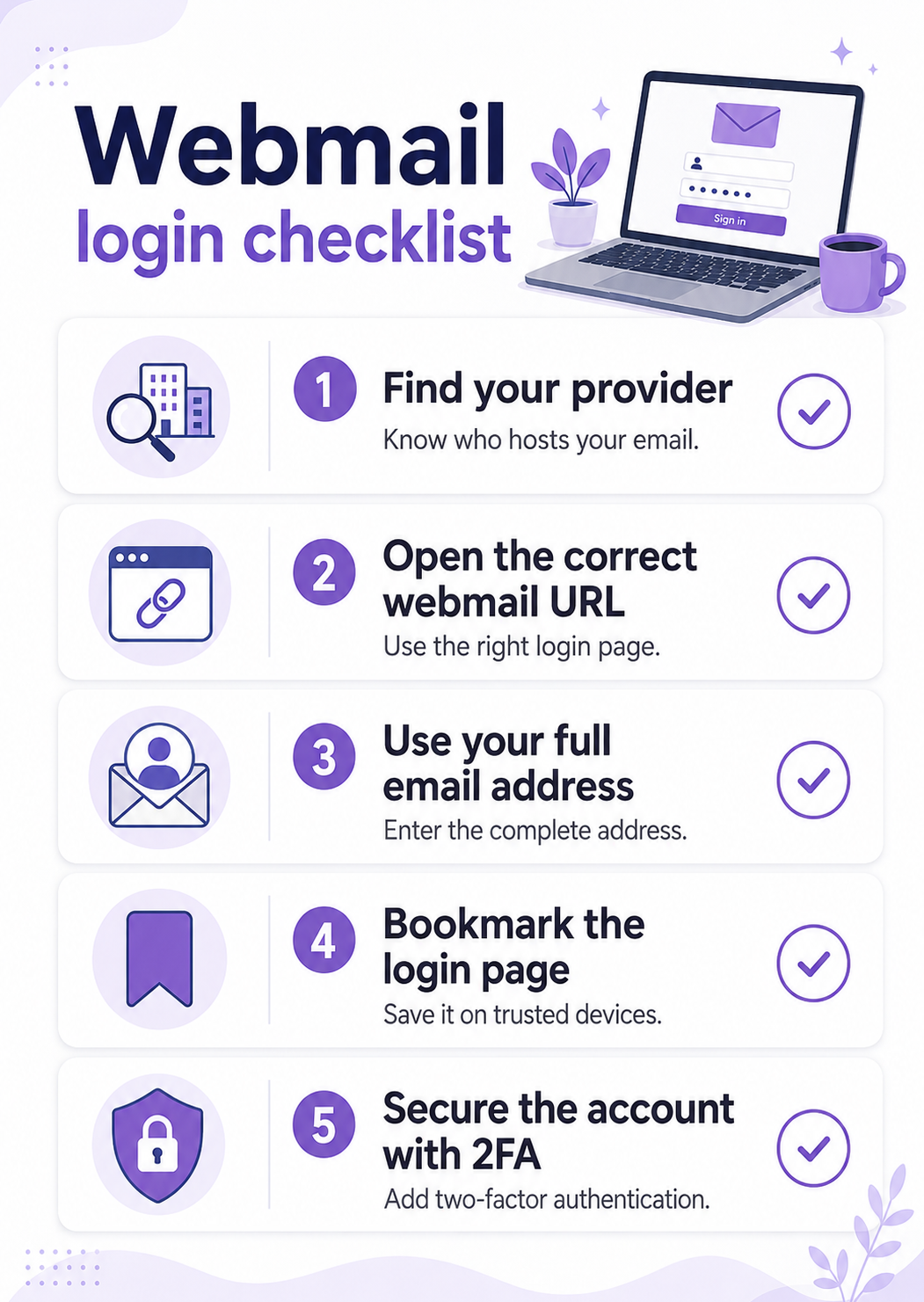
- Confirm your email provider: Know whether your email is with Rebel, Google Workspace, Microsoft 365, your hosting provider, or another service. This helps you find the right login page and support instructions. It also prevents you from trying the right password in the wrong place. Provider clarity is the first step to inbox sanity.
- Save your correct webmail login page: Bookmark the official webmail page on trusted devices. For some Rebel users, that may be
webmail.rebel.com, while Plesk-based email often follows thewebmail.domain.tldformat. Always match the login page to your actual package. When in doubt, check your Rebel dashboard or the official Help Centre. - Use your full email address to log in: For custom domain email, your username is usually the full address. This small detail solves many failed login attempts. It also helps the mail system route you to the correct mailbox. Keep this written in your secure internal notes if you manage email for a team.
- Protect the account with strong security: Use a strong, unique password and turn on 2FA when your provider supports it. Avoid shared computers and be careful on public Wi-Fi. Log out fully when using any device that is not yours. Your email account deserves the same care as your banking and business admin tools.
- Keep support information handy: Save your provider’s email support page, login instructions, and password reset location. This is especially helpful during busy moments when you do not want to search from scratch. If you use Rebel, the Help Centre includes email articles for webmail login and troubleshooting. A little organization now can save your future self from muttering at a browser tab.
Conclusion: make webmail your reliable backup plan
A webmail login is one of those small business tools that feels simple once you know where it is. It gives you browser-based access to your inbox from almost anywhere, which is helpful when you are traveling, troubleshooting an email app, or working from a device that is not your usual setup. The key is knowing your correct login page, using your full email address, and protecting your account with good security habits. Once those pieces are in place, webmail becomes less of a mystery and more of a very handy spare key.
For Rebel users, the right webmail path depends on your email or hosting package. Plesk-based hosting commonly uses the webmail.domain.tld format, while Classic Hosting and Professional Email users can access webmail through Rebel’s classic webmail login. Cloud Email users should follow the package-specific guidance in Rebel’s Help Centre. If you are unsure which setup applies to you, checking your Rebel account or contacting support is the cleanest next step.
Ready to make your email easier to access and more professional from the start? Explore Rebel’s email options or visit the Rebel Help Centre to find the webmail instructions that match your account. Your inbox has important work to do. Let’s make sure you can actually get to it.