Email not syncing? Here’s how to fix it step by step
Email not syncing? Learn how to fix common IMAP, POP3, SMTP, password, storage, and folder issues across your devices.

Email sync issues have a special talent for showing up exactly when you need your inbox to behave like a responsible adult.
Maybe a client says they replied hours ago, but nothing is showing on your phone. Maybe your laptop says a message was sent, but your tablet has no idea what you are talking about. Maybe emails you deleted keep coming back like tiny digital raccoons rummaging through your inbox. Whatever the symptom, email not syncing can make your business feel messier than it really is.
The good news is that most email syncing problems are fixable without calling in a tech wizard, sacrificing your coffee, or starting over from scratch. In many cases, the issue comes down to one setting, one password update, one storage limit, or one small mismatch between your email app and your email server. This guide walks you through the most common causes of email sync problems and shows you what to check first. If you use business email on your own domain, this will also help you understand when the issue is with your device, your app, your settings, or the account itself.
Table of contents
- What does “email not syncing” actually mean?
- Before you troubleshoot: the quick checklist
- Check whether the issue is your app, device, or account
- Cause 1: You are using POP3 instead of IMAP
- Cause 2: Your email app is not set to sync automatically
- Cause 3: Your password changed but your app still has the old one
- Cause 4: Your mailbox storage is full
- Cause 5: Your IMAP folders are not mapped correctly
- Cause 6: Security software is blocking the connection
- Cause 7: Your email provider is having a temporary issue
- What to do when nothing works
- Quick reference guide
- How to prevent sync issues in the future
- Final thoughts
What does “email not syncing” actually mean?
When your email is syncing properly, your inbox looks consistent across your devices. A message you read on your phone should show as read on your laptop. A reply you send from your desktop should appear in your sent folder on your tablet. A message you delete in webmail should not keep reappearing in your email app like it has unresolved business.
When email is not syncing, one or more devices are not matching what is actually happening on the mail server. You might see missing messages, delayed messages, mismatched folders, duplicate emails, or sent items that only appear on one device. For small business owners, this can quickly become more than a small annoyance. Missed replies can mean slower customer service, lost context, and unnecessary stress during an already busy day.
The key is understanding that email usually involves three pieces working together: your email account, your email server, and your email client. Your email client is the app you use, such as Apple Mail, Outlook, Thunderbird, Gmail, or the Mail app on your phone. Your email server is where your mailbox lives. Your account settings tell the app how to connect to that server using protocols like IMAP, POP3, and SMTP.
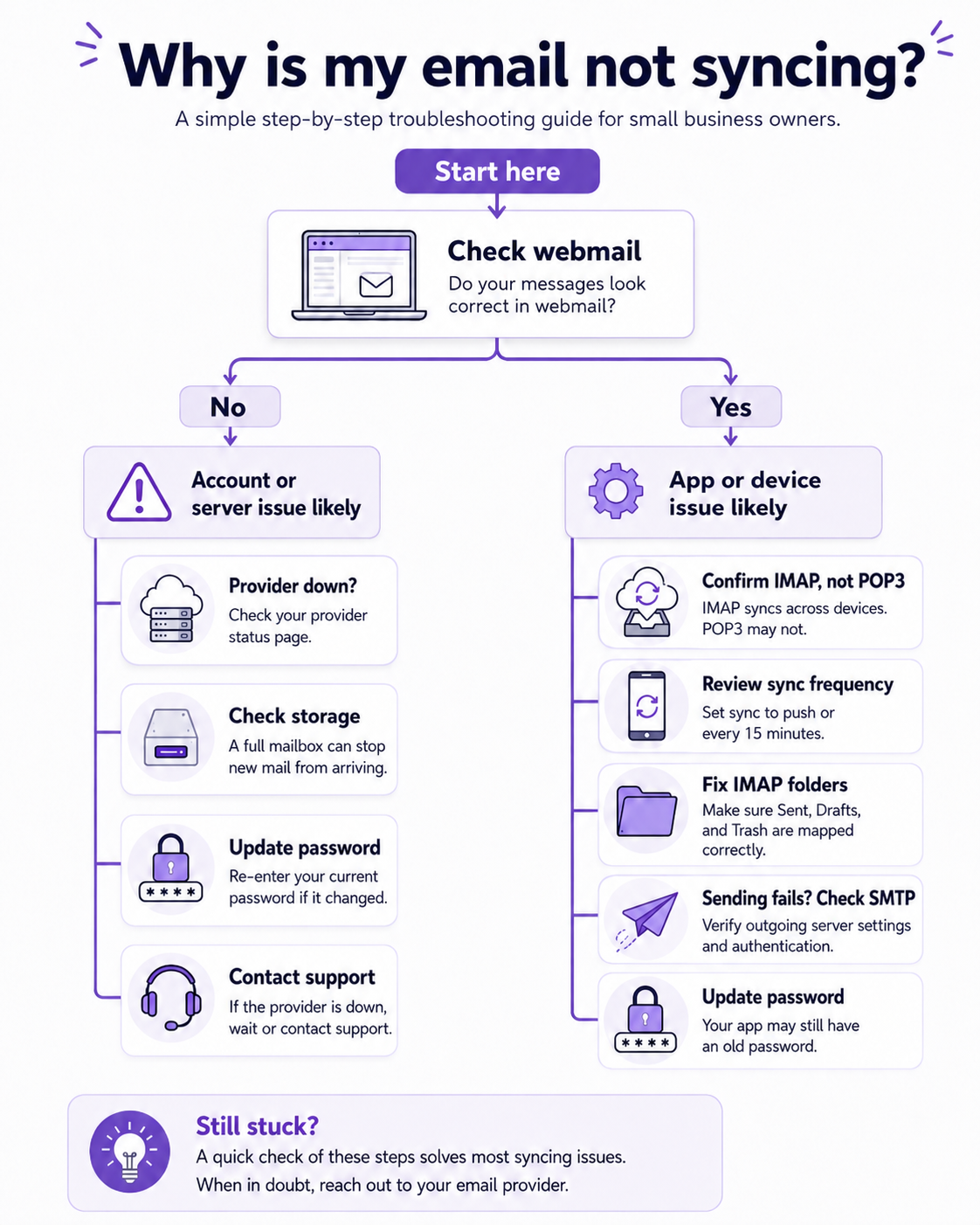
That may sound technical, but the practical takeaway is simple. If webmail looks correct but your app does not, the problem is probably your app or device settings. If webmail is also missing messages or showing errors, the issue is more likely with the account, mailbox storage, server, or provider. Starting with that distinction can save you a lot of time and keep you from fixing the wrong thing very enthusiastically.

Before you troubleshoot: the quick checklist
Before diving into settings, ports, folders, and other inbox-flavoured mysteries, start with the basics. These checks may feel almost too simple, but they solve email sync problems more often than most people expect. Small connection hiccups, frozen apps, and outdated login sessions can all make your email look broken when it only needs a quick refresh. Think of this section as the “is it plugged in?” moment, but kinder and much less smug.
Work through these first before changing advanced settings. They are quick, low-risk, and easy to undo. If one of them fixes the issue, wonderful. You have earned the right to feel quietly powerful for the rest of the day.
- Check your internet connection. Email cannot sync without a working connection, even if everything else is set up perfectly. Try opening a website in your browser or using another app that needs the internet. If those are not working either, start with your Wi-Fi, mobile data, router, or network connection. Your inbox may be innocent this time.
- Restart your email app. Apps sometimes freeze, stall, or quietly stop checking for new messages. Close the email app completely, then reopen it and give it a minute to reconnect. On mobile, this usually means swiping the app closed rather than just returning to the home screen. On desktop, fully quit the app and launch it again.
- Restart your device. A restart clears temporary glitches that can affect network access, app behaviour, or background syncing. This is especially helpful if several apps are acting strangely, not just email. Restarting will not change your email settings or delete your messages. It simply gives your device a clean start, which is sometimes all it needed.
- Check webmail. Log into your email through a browser and see whether the missing messages are there. If webmail shows the correct inbox, your email account is probably fine and the issue is likely with the app or device. If webmail is also missing messages, the issue may be with the mailbox, server, storage, filters, or provider. This one test can quickly point you in the right direction.
- Try another device. If your phone is not syncing, check your laptop or webmail. If your desktop email app is behind, check your phone. When only one device has the issue, you can focus your troubleshooting there. When every device is affected, look at the account or provider level instead.
Check whether the issue is your app, device, or account
The fastest way to troubleshoot email not syncing is to isolate where the problem lives. This does not require deep technical knowledge. It just means comparing what you see in your email app with what you see in webmail. Webmail is useful because it usually shows what is directly on the server, without relying on your local app settings.
Start by opening your email in a browser. Look for the message, folder, sent item, or deleted email that seems wrong in your app. If webmail shows the correct version of your mailbox, your server-side email is probably working. In that case, your next step is to check the app’s sync settings, login details, folder mapping, or account setup.
If webmail has the same issue, the problem is probably not your phone or laptop. It may be a storage limit, server issue, rule or filter, account password problem, or provider-side delay. This is also where it helps to check whether other people using the same email service are having trouble. If you use custom domain email, your hosting or email provider’s support team can help confirm whether the mailbox itself is healthy.
For Rebel users, this is also a good moment to confirm where your email is hosted. Your domain might be registered with Rebel, but your email could be hosted through Rebel, Microsoft 365, Google Workspace, another hosting provider, or a separate email service. Email settings come from the service that hosts your mailbox, not always from the company where your domain is registered. Knowing that distinction helps you get the right support faster and avoid a very unhelpful game of digital telephone.
Cause 1: You are using POP3 instead of IMAP
This is one of the most common reasons emails do not sync across devices. It is also one of the easiest to miss because POP3 can look like a normal setup option when you are adding an account. POP3 downloads email from the server to one device, and depending on the settings, it may remove the message from the server after downloading it. That means your laptop might receive an email first, while your phone never sees it.
IMAP works differently. IMAP keeps your mail on the server and lets your devices show a synced view of that mailbox. When you read, delete, move, or send a message, those changes can appear across your other devices too. Rebel’s email client setup guide explains how to set up IMAP, POP3, and SMTP properly for modern multi-device email use. We recommend IMAP for most small business users because it supports the way people work today, with email moving between phones, laptops, tablets, and webmail.
If your email is missing on some devices but visible on one device, POP3 may be the reason. It is not necessarily broken; it is simply doing what POP3 was designed to do. POP3 can still be useful for specific single-device or local archive setups. For most business owners, though, it creates more confusion than convenience.
Here is what to check if you suspect POP3 is the culprit:
- Look at the account type in your email app. Open your account settings and check whether the incoming server type says POP, POP3, or IMAP. If it says POP3 and you use more than one device, that is likely part of the problem. Make a note of your current settings before changing anything. This helps you avoid losing track of what was configured.
- Confirm whether your messages are still in webmail. Before removing or changing a POP3 account, log into webmail and make sure your important messages are safely on the server. POP3 setups can sometimes store messages locally on one device. Removing the account too quickly could make local messages harder to recover. Take a careful look before making big changes.
- Switch to IMAP for multi-device syncing. In most cases, the fix is to add the account again using IMAP instead of POP3. You may need to remove the old POP3 setup after confirming your messages are safe. Use the incoming IMAP server, secure port, username, and password provided by your email host. Then test the account across your devices to make sure folders and messages match.
- Use POP3 only when you truly need it. POP3 can make sense if you intentionally want to download mail to one computer for local storage. It can also be useful in some archiving workflows. But it is usually not the best default for a business inbox you check from multiple places. For most Rebel users, IMAP is the smoother choice.
Cause 2: Your email app is not set to sync automatically
Sometimes the email account is fine, the password is fine, and the server is fine. The app simply has not been told to check for new messages regularly. Many email apps include a sync frequency or fetch setting that controls how often the app looks for new mail. If that setting is manual, your inbox may only update when you actively refresh it.
This can be confusing because email may still work when you open the app and pull to refresh. That makes the issue feel random, when it is actually a schedule setting. You may receive messages eventually, but not when you expect them. For a business inbox, that delay can be inconvenient, especially if you rely on email for quotes, bookings, support, or approvals.
Look for settings with names like “sync frequency,” “fetch new data,” “check for new mail,” or “mail days to sync.” The exact wording depends on your device and app. Push email, when supported by your provider, delivers new messages as they arrive. Fetch email checks for messages at set intervals, such as every 15 minutes.
Here is where to look in common apps and devices:
- iPhone or iPad Mail. Go to Settings, then Mail, then Accounts, then Fetch New Data. Make sure Push is enabled if your provider supports it. If Push is not available, choose a regular fetch interval such as every 15 minutes. Also check the specific account to make sure it is not set to Manual.
- Android mail apps. Open your email app settings and select the email account. Look for sync frequency, account sync, or automatic sync. Make sure syncing is turned on and set to a reasonable interval. Android settings vary by device and app, so the wording may be slightly different.
- Microsoft Outlook. In Outlook desktop, check your send and receive settings, account settings, and offline mode. Make sure Outlook is not working offline and that the account is included in automatic send and receive. If the app is open but not updating, a manual send and receive test can help confirm whether the connection works. If it only updates manually, the schedule needs attention.
- Apple Mail on Mac. Open Mail settings and check how often the app looks for new messages. Also confirm that the account is enabled. If Apple Mail is open but not updating, quit and reopen it after changing the settings. Then send yourself a test email from another account to confirm the behaviour.
Cause 3: Your password changed but your app still has the old one
Password changes are a very common cause of email sync issues. You may have changed your email password recently, or your provider may have required a reset for security reasons. Webmail may work because you signed in with the new password there, while your email app is still quietly trying to use the old password. The result looks like a sync problem, but it is really an authentication problem.
Some apps clearly tell you that the password is wrong. Others are much more mysterious and simply stop updating. You might see repeated password prompts, connection errors, or no error at all. This is why it is worth checking your saved password early in the troubleshooting process.
The fix is usually simple. Open the account settings in your email app and re-enter your current password. If your provider uses two-factor authentication, you may need an app-specific password rather than your regular login password. This is common with major providers and is meant to keep your account safer when connecting through third-party email clients.
Before resetting your password again, check these details:
- Use the full email address as the username. Many email providers require the full address, such as
hello@yourbusiness.ca, not justhello. If the username is incomplete, the app may reject the login even when the password is correct. This small detail causes a surprisingly large number of setup headaches. Copy the address carefully and remove any extra spaces. - Update the password in both incoming and outgoing settings. Some email apps store separate credentials for IMAP and SMTP. That means receiving mail and sending mail may have separate login fields. If you update only one, you may fix incoming mail but still be unable to send. Check both sides before calling the problem solved.
- Check whether an app password is required. If two-factor authentication is enabled, some providers require a special app password for mail clients. Your normal password may work in webmail but fail in Apple Mail, Outlook, or another app. Visit your provider’s security settings to generate an app password if needed. Keep it stored securely, because you may not be able to view it again later.
- Avoid repeated rapid login attempts. If an app keeps trying the wrong password, your account may be temporarily blocked for security. Give it a few minutes before trying again with the correct details. If you use custom domain email, your host may be able to confirm whether failed login attempts are causing a temporary block. Patience is not glamorous, but it can help here.
Cause 4: Your mailbox storage is full
A full mailbox can stop new messages from arriving or syncing properly. When your account reaches its storage limit, the server may reject new mail, delay delivery, or behave unpredictably across devices. This is especially common with business mailboxes that have been collecting attachments, newsletters, quotes, invoices, and sent items for years. Your inbox might be tidy on the surface while large attachments are quietly eating the pantry.
Storage limits depend on your email provider and plan. Some custom domain mailboxes have modest storage allocations, while larger email platforms may include more space. No matter the size, every mailbox can eventually fill up if nothing is archived or deleted. Trash, spam, sent items, and large attachments often count toward your total storage.
To check this, log into your email provider’s control panel or webmail and look for mailbox usage. If you are near or at the limit, start by removing messages with large attachments. Then empty Trash and Spam, because deleting messages usually does not free space until those folders are cleared. If the mailbox is important for business records, consider archiving older messages before deleting them permanently.
Here are practical ways to free up space safely:
- Search for large attachments. Many email apps and webmail tools let you search by attachment size. Start with the biggest messages because a few large files can free up more space than hundreds of tiny emails. Download important files before deleting the messages if you need to keep the documents. Store business records somewhere more appropriate than your inbox, such as cloud storage or a secure local archive.
- Empty Trash and Spam. Moving messages to Trash is not the same as removing them from your mailbox. Trash and Spam often still count toward your quota until they are emptied. Check those folders after deleting old messages. This extra step is easy to forget and can make cleanup seem ineffective when it is not finished yet.
- Review Sent Mail. Sent folders can become surprisingly large because they include attachments you have shared with clients, vendors, or team members. Search for older sent messages with large files. Save anything important outside your inbox, then remove what you no longer need. Your future storage bar will appreciate the gesture.
- Upgrade storage when cleanup is not enough. If your inbox is part of your daily business workflow, extra storage may be worth it. Constantly deleting messages to stay under quota is not a great use of your time. A larger mailbox can reduce friction and make your email setup easier to manage. If you are not sure what plan fits, ask your provider what options are available.
Cause 5: Your IMAP folders are not mapped correctly
With IMAP, your email client needs to understand which server folders should be used for Sent, Drafts, Trash, Junk, and Archive. When those folders are mapped correctly, your devices stay consistent. When they are not, you may see sent messages on one device but not another, drafts that disappear, or deleted messages that do not behave as expected. It can feel like your inbox has several different opinions at once.
Folder mapping issues are especially common when you use multiple devices or switch email apps. One app might create a folder called “Sent Messages,” while another uses “Sent.” One device might move deleted mail to “Trash,” while another uses “Deleted Items.” The messages may not be gone; they may simply be sitting in a folder your other app is not watching.
The fix is to check your folder settings or IMAP subscriptions. In many email apps, you can choose which server folder should be used for sent mail, drafts, deleted messages, and junk. You can also subscribe to folders so they appear and sync in the app. Once those mappings are aligned, your devices should show a more consistent mailbox.
Check these common places:
- Apple Mail. In Apple Mail, select the mailbox and look for options that let you use a mailbox for Sent, Drafts, Trash, or Junk. Choose the folder that matches your server-side folder. After updating the setting, give the app time to resync. Then send a test message and confirm it appears in the same sent folder in webmail.
- Outlook. In Outlook, account and folder settings vary by version, but you can usually review IMAP folders and root folder paths in account settings. Make sure Outlook is subscribed to the folders you need. If Sent or Deleted Items are not showing correctly, compare them with what appears in webmail. The goal is to make Outlook follow the server’s folder structure instead of inventing its own little filing cabinet.
- Thunderbird. In Thunderbird, right-click the account and look for Subscribe to choose which IMAP folders are visible. You can also check copies and folders settings to control where sent messages and drafts are stored. Make sure those folders point to the server folders you actually use. This helps keep Thunderbird aligned with your other devices.
- Mobile apps. On phones and tablets, folder settings may be tucked under account settings, advanced settings, or mailbox behaviours. Look for options related to sent mailbox, deleted mailbox, archive mailbox, or drafts mailbox. Compare those folders with webmail. If the names differ, choose the folders that already exist on the server.
Cause 6: Security software is blocking the connection
Security tools are meant to protect you, which is good. Occasionally, they get a little overprotective and interfere with email connections. Antivirus software, firewalls, VPNs, and network filters can sometimes block IMAP, POP3, or SMTP traffic. When that happens, your app may stop syncing even though your username, password, and server settings are correct.
This can show up as connection timeouts, repeated password prompts, or a mailbox that spins without updating. It may happen after a security software update, operating system update, or network change. It may also happen only on one network, such as at an office, coworking space, or public Wi-Fi. If your email works on mobile data but not on Wi-Fi, the network or firewall deserves a closer look.
To test this safely, try connecting from a different network or temporarily disabling the specific email scanning feature in your security software. You do not need to turn off every protection permanently. The goal is to identify whether the security layer is causing the issue. If email sync resumes after changing the security setting, add your email app or mail server to the allowed list according to your security software’s instructions.
Keep these checks in mind:
- Test on another network. Switch from Wi-Fi to mobile data, or try another trusted Wi-Fi network. If email syncs on one connection but not another, your account is probably fine. The problem may be with the blocked ports, firewall rules, or network filtering. This is useful information if you need to contact your provider or IT support.
- Check VPN behaviour. Some VPNs can interfere with email connections, especially outgoing SMTP. Disconnect the VPN briefly and test email again. If sending or syncing starts working, check your VPN settings or choose a different server location. You can also ask your VPN provider whether mail traffic is restricted.
- Review antivirus email scanning. Some antivirus tools scan encrypted email connections and can accidentally interrupt them. Look for mail shield, email scanning, or SSL scanning settings. If turning that feature off fixes the issue, add a safe exception for your email app. Keep core security protections active while adjusting only what is necessary.
- Check firewall rules. Firewalls may block the ports your email app needs to connect. Secure IMAP commonly uses port 993, and outgoing SMTP often uses 587 or 465 depending on the provider. Your email host’s recommended settings should guide what needs to be allowed. Avoid guessing when you can confirm the exact details.
Cause 7: Your email provider is having a temporary issue
Sometimes the problem is not your settings, your device, or your inbox habits. Sometimes the mail server is having a moment. Email providers can experience outages, maintenance windows, delayed delivery, authentication problems, or service disruptions. These issues can make your email appear stuck even when everything on your side is configured correctly.
Before you rebuild your account or reset every password you have ever loved, check whether your provider has a status page. Major providers often publish service updates when there are known issues. If you use email through your hosting provider, they may also have a status page or support channel. If you use Rebel services, contacting Rebel support can help you confirm whether there is a service-level issue or whether your specific account needs attention.
Provider issues usually affect more than one device. If your phone, laptop, and webmail are all having trouble at the same time, it is worth checking service status. If other people on the same service are reporting problems, the best move may be to wait for the provider to resolve it. Not satisfying, perhaps, but better than changing settings that were already correct.
Here is how to handle possible provider issues calmly:
- Check the provider’s status page. Look for notices about email delivery, IMAP access, SMTP sending, authentication, or webmail. A status page can save you from unnecessary troubleshooting. If there is a known issue, avoid making major account changes until service is restored. Changing settings during an outage can create new problems after the original issue is fixed.
- Test webmail and multiple devices. If webmail is down or slow too, the issue may not be your app. Try another device to confirm the pattern. If everything fails at once, provider-side troubleshooting becomes more likely. Document any error messages you see in case you contact support.
- Ask support with specific details. When contacting support, include your email address domain, the app you use, the device, the exact error message, and whether webmail works. This helps support narrow the issue faster. “Email broken” is understandable, but “Outlook on Windows can receive but not send, webmail works, SMTP error appears” is much more useful. Specifics are your friend here.
What to do when nothing works
If you have checked the basics, confirmed IMAP, updated your password, reviewed storage, fixed folder mapping, tested security software, and ruled out a provider issue, the next step is often to remove and re-add the account. This gives your email app a clean setup and clears corrupted local settings. It is a common fix when an account used to work but now behaves oddly for no obvious reason. But there is one important caution before you do it.
Before removing any email account from an app, confirm whether it is using IMAP or POP3. If it uses IMAP and your messages are visible in webmail, removing and re-adding the account is usually straightforward because the messages live on the server. If it uses POP3, some messages may exist only on that device. Removing a POP3 account without checking first can make local messages harder to access.
Log into webmail and confirm that your important messages, folders, and sent items are there. If anything important exists only in the app, export or back it up before removing the account. Once you are confident your mail is safe, remove the account from the app and add it again using the correct IMAP and SMTP settings from your provider. Then test receiving, sending, deleting, and folder syncing.
When re-adding the account, take your time with the setup details. Use your full email address as the username unless your provider says otherwise. Match the server names, ports, and encryption settings exactly. Make sure SMTP authentication is enabled so you can send mail as well as receive it. A clean setup can feel boring, but boring is exactly what you want from business email.
Quick reference guide
When email is not syncing, it helps to match the symptom to the most likely cause. This section is not a replacement for the full troubleshooting steps above. It is a fast way to decide where to look first. Use it when you need a quick nudge in the right direction and do not want to wander through every setting at once.
Each issue below includes the likely cause and a practical first fix. If the first fix does not work, move back through the full sections above. Email problems can have more than one cause, especially if an account has been moved between devices or apps over time. Still, starting with the most likely explanation usually gets you there faster.
- Emails are missing on your phone but visible on your laptop. This often points to POP3, sync settings, or an account setup difference between devices. Check whether the account is using IMAP on all devices. Then compare the server settings and folder subscriptions. If one device uses POP3 and the other uses IMAP, rebuild the setup around IMAP.
- Your inbox only updates when you refresh it manually. This usually means automatic sync, push, or fetch settings need attention. Check the sync frequency in your app or device settings. Set it to push if supported, or choose a regular fetch interval. Then send yourself a test message and see whether it appears without manual refresh.
- Sync stopped after you changed your password. Your email app may still be using the old password. Update the password in both incoming and outgoing settings. If two-factor authentication is enabled, check whether you need an app password. Restart the app after updating the credentials.
- You can receive email but cannot send it. This usually points to SMTP settings. Check the outgoing server name, port, encryption type, username, password, and authentication setting. Make sure the outgoing username is your full email address if required. Send a test message after updating the settings.
- Sent messages appear on one device only. This is often an IMAP folder mapping issue. Check which folder your app uses for sent mail. Compare it with webmail and choose the correct server-side sent folder. After changing it, send a test email and confirm it appears everywhere.
- New messages are not arriving at all. Check webmail, mailbox storage, server status, and filters. If webmail also shows no new messages, the issue may be account-level rather than app-level. Make sure your mailbox is not full and that no rules are moving messages elsewhere. If everything looks normal, contact your provider with details.
- The app keeps asking for your password. This can happen when the username is incomplete, the password is wrong, an app password is required, or the provider is blocking repeated failed attempts. Confirm the full email address is used as the username. Re-enter the password carefully. Then check provider security requirements before trying too many times.
How to prevent sync issues in the future
Once your email is syncing again, it is worth taking a few simple steps to keep it that way. You do not need a complicated system. A few good habits can prevent most common sync problems from coming back. Your inbox should support your business, not become a recurring side quest.
The best prevention starts with choosing the right setup from the beginning. For most small business owners, IMAP is the better choice because it keeps devices aligned and leaves mail on the server. SMTP should be configured carefully because it controls your ability to send messages. Rebel’s setup article explains that IMAP handles syncing across devices, POP3 downloads messages, and SMTP handles outgoing mail, which is the foundation for a reliable email client setup.
It also helps to keep a secure record of your email settings. Save your incoming server, outgoing server, ports, encryption type, username format, and provider support link somewhere safe. That way, if you get a new phone or reinstall Outlook, you are not hunting through old notes or guessing under pressure. Guessing is fine for soup seasoning, not so much for SMTP ports.
Here are smart habits to reduce future email sync issues:
- Use IMAP for everyday business email. IMAP is the most practical setup when you use more than one device. It keeps your inbox, folders, read status, and sent mail more consistent. This makes it easier to work from your phone, laptop, tablet, or webmail without losing track. It is especially helpful if your business grows and more people need access to shared communication.
- Keep your mailbox below its storage limit. Make time to clean up large attachments, old sent messages, spam, and trash. You do not need to be ruthless every week, but a periodic cleanup helps prevent sudden delivery issues. If your business depends heavily on email records, consider an archive strategy. A healthy mailbox is much less likely to surprise you.
- Update passwords carefully across devices. When you change your email password, update every app and device that uses that account. Remember that SMTP may store separate outgoing credentials. If you use app passwords, label them clearly in your password manager. This keeps one forgotten device from repeatedly trying the wrong login.
- Check provider instructions before changing advanced settings. Email settings can vary by provider and plan. Before changing ports, encryption, server names, or authentication settings, confirm the recommended values. This is especially important for custom domain email. One small mismatch can stop an otherwise healthy account from connecting.
- Use professional email on your own domain. A custom address such as
hello@yourbusiness.caorsupport@yourbusiness.comhelps your business look more polished and easier to recognize. It also gives you more control as your online presence grows. When your domain, website, and email are aligned, customers get a clearer and more consistent experience. That kind of clarity is good for trust and good for your future self.
Final thoughts
Email sync problems are frustrating, but they are usually not a disaster. Most of the time, the fix is one of the usual suspects: POP3 instead of IMAP, manual sync settings, an old password, full storage, folder mapping, security software, or a temporary provider issue. Once you know where to look, the problem becomes much less mysterious. It may still be annoying, but at least it is an annoying thing with a checklist.
For most Rebel users, the clearest path is to use IMAP for incoming mail and properly configured SMTP for outgoing mail. That setup keeps your inbox consistent across devices and makes everyday business communication easier to manage. POP3 still has a place in specific workflows, but it is rarely the best default for a modern business inbox. If your email needs to follow you from your desk to your phone to wherever you are squeezing in one more reply, IMAP is your friend.
If you are setting up email for the first time, or rebuilding an account that has been acting up, start with the correct provider settings and test everything before moving on. Send a message, receive a reply, check webmail, review sent mail, and confirm folders are syncing. A few minutes of testing now can save you from future inbox weirdness. Your customers may never notice your email setup, which is exactly the point.
Ready to make your business email feel more reliable and professional? Start with a domain-based email address your customers can recognize, then use the right email client setup so your inbox stays synced wherever work takes you. Rebel can help you connect your domain, email, and online presence with less guesswork and more human support.